Advanced Analysis: Create Service
A missing service might occur when invoices are loaded and an account is listed on the invoice but does not exist in Cimpl. To correct this error, you must create a service.
- Go to Billings Center > Discrepancy Tracker and select the Advanced Analysis tab.
-
Select a Provider. The Advanced Analysis grid opens.
Note: Providers must have their Advanced Analysis permission configured by Cimpl. To set up this permission contact cimpl-support@uplandsoftware.com. Without this permission configured, Advance Analysis is unavailable.
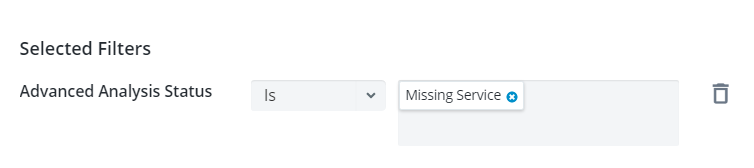
- In the Filter section, select the Advance Analysis Status filter. The filter appears under Selected Filters.
- Select the IS operator.
-
Select Missing Service .
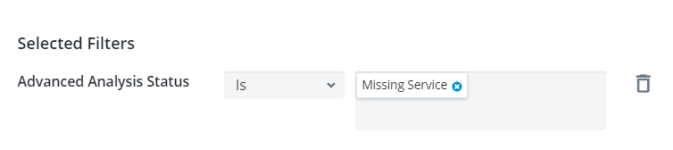
- Click Apply. Only errors that have the status of Missing Account now appear in the grid.
- Click More Options
 beside the error entry you want to update.
 - Select Create Service. The Create Service form opens.
- Select a Service Type.
- Select a Service Contract.
- Select an Assignment: Employee or Organization.
- Click + Employee or + Organization to assign the service.
- Click + Cost Center to add the cost center.
- Enter Comments.
- Potential Cost Savings is selected by default.
- Click Apply. The service has been created and the error corrected.
- Go to Payment Readiness.
Note: Only accounts which have no errors in Advanced Analysis will be able to be processed through Payment Readiness. Accounts with remaining errors will be ineligible for payment.